


An Introduction to SnapshotCM Concepts
SnapshotCM is a configuration management solution designed to simplify the task of managing change. SnapshotCM offers the standard features you have come to expect from CM products: version control of files, change locking, branching and merging. In addition, SnapshotCM provides fast, simple and error-free project release management, sophisticated team coordination, powerful workspaces, and more.
Most CM tools focus on versioning files and perhaps directories. SnapshotCM goes beyond this by providing project level versioning. In project versioning, a complete hierarchy of files and folders is versioned together—simply and efficiently. SnapshotCM provides the means to instantly branch a project, quickly compare versions of a project, and easily copy changes from one project version to another. These operations are fast, powerful and visual—meaning you see what you are doing, without arcane configuration files, or complex syntax.
In SnapshotCM, a version of a project is called a snapshot. Understanding snapshots is key to understanding SnapshotCM. Understanding how snapshots and the other SnapshotCM objects solve common CM problems will enable you to make effective use of SnapshotCM. And that is the purpose of this document. Read on!
This document covers the following materials:
Key Objects
There are four key object types in SnapshotCM. Understanding them and how they relate is key to understanding the power that SnapshotCM provides. The key objects are projects, snapshots, workspaces and files.
Projects
Projects are the overriding organizational tool for SnapshotCM. A project manages a hierarchy of files that you want to version and manage together. Projects can be big, containing thousands of files, or small. They can have many versions or few. They can be stand-alone, or shared by other projects. Each project contains a collection of versions (we call them snapshots), each representing a unique version of the project. A project organizes and graphically depicts the relationships between the snapshots. Some snapshots reflect past project releases while others reflect current or future releases. Some hold intermediate versions, some serve as containers for integration of changes, and others isolate individuals or groups from changes being made by others.
SnapshotCM stores a project in a SnapshotCM repository managed by a centrally located SnapshotCM server. A SnapshotCM server can manage multiple projects, but a project cannot be split across multiple servers. SnapshotCM clients access the server remotely using the TCP and IP protocols.
When defining projects, consider that they are independent and complete elements. Each project is separate from other projects and data cannot be passed from one to another. Release management is simplest when a project manages all elements that will be released together. Depending on what type of environment you work in, a project can manage anything from a released product to a set of internal documentation.
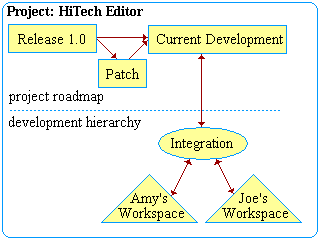
Figure 1. To organize your work, a project contains a project release road map (above the dotted line) so you can graphically see your releases and their relationships. It also contains a development hierarchy to help coordinate team changes.
SnapshotCM allows flexibility in the way you structure the snapshots in your project depending on the complexity of your project and the size of your team. Figure 1 shows four snapshots, plus two workspaces.
Examples
-
If you are working on a team that releases an external product, you use a project to organize product releases and product development. The project release road map organizes your releases and any patches you may create, and the development hierarchy organizes your teams and development structure. Also, you can name the project after the product you are working on for easy recognition. For example, if your product’s name is HiTech Editor, then you can name the project HiTech Editor.
-
You might be working on a team that releases only internal products. For example, you maintain a web site for your division or company. You then use a project to maintain phases of enhancements and fixes (your project road map). The organization of your development work (development hierarchy) is also organized under the project and is flexible enough that it can grow with your team. You can name the project Cool Web Site for easy recognition.
-
Maybe you are working on a team that never releases an external or internal product but has many projects to organize. For example, you are developing prototypes for customers. You can use projects to organize your development and manage different phases of your projects. Give each project an appropriate name, such as Government Prototype or Customer X Prototype.
Snapshots
A project contains one or more snapshots, each of which is an independent state (version) of the project. One can imagine each snapshot being a parts-list containing a list of all the files, folders and attributes that make up a particular version of your project. Different snapshots have different parts-lists. Changes to one snapshot do not affect other snapshots. As changes are applied to a snapshot (through check in or other attribute changing operations), the snapshot's parts-list is modified to reflect those changes.
Whenever a snapshot state becomes something with meaning that you want to preserve, you simply create a copy of the snapshot (an instantaneous operation). You can then freeze that copy by setting the freeze flag on the snapshot and/or use the access control mechanisms of SnapshotCM to prevent further changes.
In order to adequately support versioning complete project states, SnapshotCM stores the following types of attributes for each file or folder in a snapshot:
- Contents of the file, whether large or small, text or binary.
- Name of the file or folder.
- Directory in which the file or folder resides.
- Active/deleted state of the file or folder.
- Unix mode of the file or folder.
- End-of-line processing mode (text or binary) of the file.
- Keyword expansion setting for the file.
While snapshots maintain distinct states, the relationships between changes is also tracked. This means that you can safely delete obsolete files and directories, and rename or change whatever attributes are necessary for on-going work without losing either the old names (in the old snapshot) or the association between the old and new names.
It also means that SnapshotCM can intelligently compare two snapshots to see what's different. More than that, you can also propagate changes to any of these attributes from one snapshot to another. And SnapshotCM knows which way a change should propagate.
In addition to the above, every change has an associated change record indicating who made the change, when it was made, a comment about the change, the revision(s) the changed item was derived from, the size of the file and more.
Snapshot Types
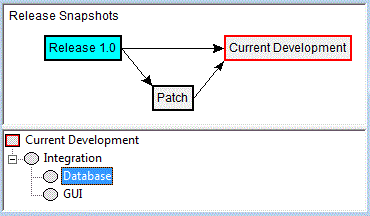
Figure 2. SnapshotCM uses two types of snapshots: release snapshots and development snapshots. Release snapshots are the top, stable areas where changes are moved after being tested in the development snapshots. You can use development snapshots to isolate and coordinate team changes. Notice that each snapshot contains its own virtual copy of all files for that project state.
Just as projects provide an overriding organizational tool, snapshots provide a powerful way to organize your development. Whether your team is large or small, one person or many, snapshots allow you to define how your team coordinates changes and how files will be managed during development.
Snapshots take on several roles in SnapshotCM. They preserve past releases of a project, they are place holders for present and planned releases, and they coordinate changes by a team. Even explicit branching in a project involves snapshots.
SnapshotCM offers two types of snapshots for your project structure:
- release snapshots – graphically arranged to show project release relationships
- development snapshots – hierarchically arranged to show change propagation relationships
Release snapshots are the top level of the development hierarchy and allow you to organize past product releases and plan for future releases. The project browser shows release snapshots and their relationships graphically. The top half of figure 2 shows release snapshots in a small graph.
Development snapshots are the basis of your development hierarchy and allow development teams to isolate and coordinate changes until the code is stable enough to move up into the release snapshot that anchors a hierarchy of development snapshots. The bottom half of figure 2 shows a development hierarchy.
Figure 2 shows a sample development hierarchy with three project snapshots and three development snapshots.
Release Snapshots
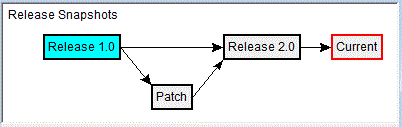
Figure 3. The project browser graphically depicts release snapshots and relationships. These release snapshots represent two project releases, one patch release, plus current development.
Release snapshots form the top level of your project structure, providing an organizational tool for project releases (see figure 3). You use release snapshots to manage:
- stable instances of your project that are no longer changing (such as completed product releases, completed patches and other completed milestones you want to save)
- current instances of your project that are somewhat stable but may continue to change (such as patch or beta snapshots of the project that you plan to continue working on)
- new or future releases for your project
- patches and other branch development
- investigations
Release snapshots organize your project by providing a top-level structure from which to coordinate development snapshots and personal workspaces.
Using Release Snapshots Instead of Tags
If you are an experienced user of CM tools, you are probably familiar with using tags (or symbolic names) to keep track of branches and releases in your development. With SnapshotCM, tagging is not necessary since all files for a version of your project are contained in a snapshot. Essentially, the snapshot is the tag. And to create a "tag" of another name, one simply creates a new snapshot as a copy of an existing snapshot.
Using release snapshots, you eliminate the risk of losing or incorrectly tagging files. You can create as many release snapshots as you need to maintain your project, and the correct file revisions and attributes will always be in the snapshots you have defined. Because creating new release snapshots is equivalent to tagging all files in the source snapshot, you will never need to tag and re-tag individual files again.
Examples
-
You may be on a team that wants to save many instances of your project. With SnapshotCM, you can create as many release snapshots as you want, naming them appropriately. For example, you may have snapshots called Beta (02-12-00), Checkpoint (05-13-00) and Patch 1.7 (12-13-01).
-
If you are on a team that releases once a year or once every six months, snapshots can organize your releases also. For example, you may have release snapshots called Release 1.0 Beta, Release 1.0, and Release 2.0.
-
Release snapshots can be used for bug fixes or enhancements to code. With release snapshots, you do not have to search for all the files you need because they are already located in the proper snapshot. You simply make a copy of that snapshot, thereby creating another snapshot for your fix or enhancement work. You can name the new snapshot Patch 1.6 or Enhancement 2.0. Be sure to make changes in the copy rather than directly in the base line snapshot in order to preserve the baseline snapshot.
Development Snapshots
Development snapshots represent the team change coordination model of your team. It is an organizational tool that allows you to:
- isolate development of specific project components, such as GUI or database development
- isolate changes until they are tested and ready for wider distribution
- maintain project versions with varying states of stability and functionality
- coordinate changes between multiple teams
- test and approve changes before moving them into more stable snapshots
You create development snapshots by copying a project snapshot. When initially created, a snapshot is identical to that of the source snapshot, containing all the same files and directories and attributes. This way, work can be tested and approved in the development snapshot with full access to all files. The release snapshot remains stable because the development snapshot is used for changes and testing.
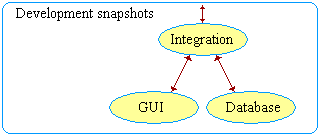
Figure 4. Use development snapshots to isolate team changes and to coordinate changes within teams. Development is completed and tested in the development snapshots before affecting the more stable release snapshots.
Development snapshots let you make changes to your project and test how these changes perform without affecting other teams working on the same project (see figure 4). Depending on how you plan to use the development snapshot and how your project structure is organized, a development snapshot is either linked to a release snapshot or to another development snapshot. Every development snapshot is part of a development snapshot hierarchy rooted with a release snapshot. Every release snapshot can have its own snapshot development hierarchy.
Using Development Snapshots for Integration
Using development snapshots to organize your project structure can provide flexibility and protection for your development teams. You can use a development snapshot as a place to integrate and test the changes from all teams before affecting release files. As figure 4 shows, this integration development snapshot can be placed below a project snapshot so that no changes can be moved into a stable snapshot of your project without passing through the integration snapshot for testing.
Examples
-
If you are working on a project that has many teams (for example, GUI team, DBA team, Editor team), you can set up your development hierarchy to isolate each of these teams. Each team can have its own development snapshot so that they can coordinate their changes before the other project teams see them. In this case, you will probably want one or more integration snapshots to coordinate all team changes.
-
A small team may have just a few people. In this case, you may want only one development snapshot to coordinate and test changes between the four team members.
Snapshot Relationships
Relationships between snapshots allow you to easily perform operations between them, such as comparing the snapshots, or copying changes between them. Relationships also give you a view of your project structure, graphically representing the relationship between one snapshot and another. A relationship is created automatically when you copy one snapshot to create another snapshot. In the figures in this document, the arrows represent the relationships between snapshots.
SnapshotCM uses two types of relationships:
- Sequential relationships are between release snapshots and show how a project's release snapshots relate to one another.
- Hierarchical relationships are between snapshots in a development hierarchy and show how a team coordinates their changes..
Sequential Relationships
Sequential relationships refer to connections between release snapshots and are automatically established when one release snapshot is copied to create another release snapshot. Relationships can also be manipulated manually to reflect new or modified relationships. Sequential relationships are shown graphically in the project browser, and they allow you to easily copy changes between one project snapshot and another.
Example
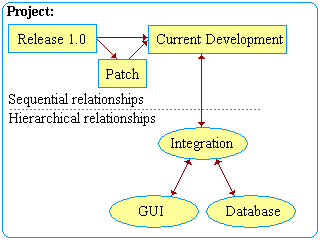
Figure 5. Three sequential relationships between release snapshots and three hierarchical relationships are shown. Changes made in one snapshot can be copied to other snapshots connected by a relationship. Copies occur in both directions of a hierarchical relationship. Copies occur unidirectionally in sequential relationships.
After your team has completed Release 1.0, a customer calls to report a defect in your product. From your release snapshot Release 1.0, you can create a new release snapshot called Patch. The arrow between Release 1.0 and Patch shows that the Patch snapshot is derived from the Release 1.0 snapshot. By adding an additional relationship from Patch to Current Development, fixes applied to the patch can easily be propagated into the current work. See figure 5.
Hierarchical Relationships
A hierarchical relationship is a parent-child relationship between two snapshots. A parent snapshot is above a child snapshot (closer to the root) in the development hierarchy (see figure 5). Hierarchical relationships allow operations to be performed between the two snapshots in either direction.
Example
Once the GUI and Database teams have reached some stability, they get the latest changes from Integration, resolve any problems and then promote their changes into the Integration snapshot. Once all teams have promoted and testing is completed, the stabilized set of changes in Integration is promoted into Current Development, making Integration available for the next round of changes.
Workspaces
A workspace is an area on your local machine where you do project development without affecting the rest of the project. While release and development snapshots give you views of your project, your workspace contains a working copy of one of those views, plus whatever local changes have not yet been checked in.
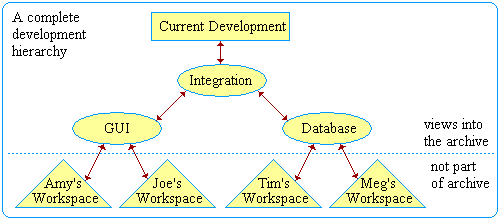
Figure 6. Each person working on a project has one or more workspaces. All the snapshots above the dotted line are views into the repository. The workspaces below the dotted line contain copies of the project's files, but are not part of the repository.
Every workspace must be associated with (or mapped to) at least one snapshot. These snapshots are mounted on to the workspace such that the mapped snapshot contains the archive files that you will use (see figure 6). Files in workspaces can be modified and new files created, but the snapshot is not affected until check in. Other attribute modifying operations, such as rename and delete, are performed on the snapshot and the workspace together. In figure 6, Amy's and Joe's workspaces are mapped to the GUI snapshot, while Tim's and Meg's workspaces are mapped to the Database snapshot.
Each mount of a snapshot associates that snapshot's file structure with the corresponding hierarchy in the workspace. The folders and files in a workspace will have the same hierarchical organization as in the mapped snapshots. In other words, there always will be a place in a workspace for every file in a snapshot.
As with snapshots, workspaces are important organizational tools that help you control and maintain your project. But more importantly, workspaces are where you perform the actual work of project development.
Examples
-
Let’s say that you have just been assigned to work on the GUI. You would then attach your workspace to the snapshot labeled GUI.
-
You may be working on a project where several people will be working closely together. Attaching multiple workspaces to a snapshot allows all team members to see changes immediately after check in (through a workspace update) and facilitates close coordination of changes. Once the team changes are ready, they can be copied to the parent integration snapshot. In figure 6, Amy and Joe share the GUI snapshot in this fashion, as do Tim and Meg share the Database snapshot.
Working Set
Most SnapshotCM operations act upon the set of files and folders selected by the user for that particular operation. SnapshotCM also supports workspace-wide operations. These operate on a pre-defined working set, which is a subset of the files and folders in a snapshot. Workspace-wide operations use the working set to restrict action to just the files and folders you need for your particular tasks. And since only changes within your working set will be updated during workspace update, your workspace will not be cluttered (and disk space used) by files you don't need, and the operation will be faster.
Each entry in a working set specifies a file or folder to add to or exclude from the working set. Additions and exclusions apply to the specified hierarchy, with the most specific path taking precedence.
Files
Files are the final key object type. Unlike projects and snapshot, which exist only in the repository, and workspaces, which exist only on a workstation, files exist both in the repository and in the workspace. Files in the repository are versioned and immutable, while files in a workspace are not versioned and mutable. Checking in a modified file from a workspace into a snapshot creates a new revision in the file's history, but also updates the snapshot to reference that new revision with its updated attributes.
This last is key. Check in and other attribute changes do not simply add to the history of a file. They also modify the snapshot through which the check in or other attribute change is performed such that the snapshot references the new revision.
Key Operations
If you work on a small project in a small or single person team, you can operate effectively with a single release snapshot per release. Larger teams have complex environments that need the more powerful change coordination operations supported by multiple snapshots. Whether you work on a small or large project, SnapshotCM allows you to work effectively by providing operations to fit your needs.
The operations that SnapshotCM offers can be divided into two categories:
- workspace operations
- snapshot operations
Workspace operations are performed between a snapshot and a workspace. These operations include checking in a file, checking out a file and updating your workspace (Figure 7).
Snapshot operations are performed between two snapshots. These operations include comparing snapshots, promoting or copying changes between snapshots, creating new snapshots, manipulating snapshot relationships and changing snapshot properties (see figure 8).
Workspace Operations
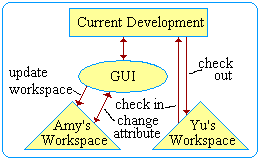
Figure 7. Workspace operations allow you to perform operations on files and folders that affect a workspace and its mounted snapshots.
Checking Out Files
Checking out a file from a snapshot into
your workspace gives you a copy of that file on your machine so that you can
work with it. Any changes you make to the workspace copy will not affect the
file in the snapshot until you check the workspace file back in.
You can check out a file with read-write (locked) or read-only (unlocked) permissions. Use the locked option when you want to make changes to the file, and use the unlocked option when you simply want to read the file from your local system. SnapshotCM allows you to check out multiple files in one operation.
Checking In Files
Checking in files incorporates the
changes that you have made in your workspace into the mounted snapshot. By
checking in your modified files, you apply your changes to the mounted
snapshot. Your changes then become available to any co-workers who have
workspaces mapped to the snapshot, and also become available for copying to
other snapshots.
Updating Workspaces
Updating your workspace incorporates
any file or folder changes in the mounted snapshots into the same files and
folders in your workspace. By updating your workspace, you ensure that you have
the most current file revisions. After you have checked in your modified files,
your co-workers can update their workspaces to reflect the changes you have
made. Your co-workers can then continue their development using the latest file
revisions.
Importing Files and Folders
Files and folders which only
exist in the workspace can be added to the mounted snapshot by doing an import.
Individual items or a whole hierarchy can be imported easily.
Changing Mode, Renaming and Deleting Files and Folders
Mode
change, rename and delete operations are applied to the snapshot and workspace
together. Any unlocked file or empty folder can be deleted, and any file or
folder, even if locked, can be renamed, moved to a different folder or have its
mode changed.
Changing Check In and Check Out Attributes
The keyword
expansion and I/O mode attributes can be modified on any file. These operations
have no effect on folders. If changing either of these attributes causes the
desired workspace file contents to be different, the next check out or
workspace update operation will update the file (unless the workspace file has
been modified, in which case a merge is necessary).
Snapshot Operations
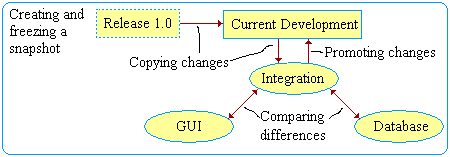
Figure 8. Snapshot operations allow you to copy changes between snapshots in a team environment.
Updating Snapshots
You can copy changes from a parent
snapshot into a child snapshot by selecting the child snapshot and choosing
Snapshot -> Copy Changes From Parent. The copy incorporates any file
or folder changes unique to the parent snapshot into the same files and folders
in the child snapshot. If a workspace is associated with the child snapshot,
SnapshotCM can also update it automatically.
Promoting Snapshots
You can promote changes from a child
snapshot into a parent snapshot by selecting the child snapshot and choosing
Snapshot -> Promote Changes To Parent. You promote changes up the
development hierarchy when changes in the child snapshot have been approved or
have been tested enough to move into the parent snapshot. You cannot promote
conflicting changes between a child snapshot and its parent snapshot. You must
first resolve the conflict during a Copy Changes From Parent operation,
and then you can promote your changes.
Merging Snapshots
The merge operation involves resolving
conflicts between snapshots so that a promotion or copy can be performed. Since
a merge involves conflicting changes, you may need to attach a workspace to the
child snapshot to resolve the conflicts. Once the conflicts are resolved,
SnapshotCM can automatically complete a copy or promote for you.
If you promote or copy changes from one snapshot into another, your changes affect the rest of your team. Therefore, SnapshotCM requires that you perform a merge to resolve any conflicts before promoting or copying those changes.
For example, if two team members make conflicting changes to the same file, a merge between the two files will need to be completed before any copy or promote involving that file can be performed. To resolve conflicts, you need to attach a workspace to the target (child) snapshot and manually resolve the conflicts.
Comparing Differences
SnapshotCM provides an automatic and
quick way to view differences between individual files or entire snapshots. The
differences displayed include anything from file or folder property differences
to content differences. If you want to see the differences between two or more
files or file revisions, you use the compare operation, and the differences are
quickly displayed to you. Viewing the differences between two entire snapshots
with SnapshotCM is simple and fast because SnapshotCM directly accesses the
differences between the two snapshots.
Creating A Snapshot
A new snapshot is created by copying an
existing snapshot. The new snapshot is an exact copy of the original, taking up
no additional file space until one or the other of the snapshots is modified.
Therefore the operation is quick and efficient.
A new snapshot can be created as a New -> Development Snapshot, or, if the source is a release snapshot, as a New -> Release Snapshot. New release snapshots can be inserted before the existing snapshot, taking over any predecessor relationships, or can be added as a successor of the existing snapshot.
Freezing a Snapshot
Freezing a snapshot prevents any
modification to the contents and allows you to recreate the frozen snapshot at
any time. While access control also can prevent changes, freezing a snapshot
preserves the access control list for the snapshot should it need to be
unfrozen again later.
To tag and freeze a snapshot, you first create a new copy of the snapshot, choosing the insert as predecessor option. Then you select Snapshot -> Properties and select freeze on the copy. It is important to make and freeze the copy so that your development hierarchy can continue to be used on the existing snapshots.
Development Models
Organizations often use several software development models during the life-cycle of their products. SnapshotCM supports any model you choose because it offers flexible project structures and powerful organizational tools. The following section gives you examples of how you can use SnapshotCM for different types of development.
Sequential Development
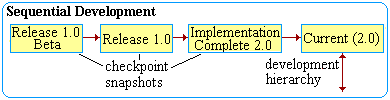
Figure 9. Checkpoint snapshots form a sequential set of important instances of your project. You can create as many checkpoint snapshots as you find useful.
During the life-cycle of your project, you may want to save certain stable instances of your project for future reference or use, such as beta releases or completed releases. By copying a release snapshot that you will freeze for future reference, you are creating a checkpoint snapshot. These checkpoint snapshots not only give you an archive of important releases, but they also provide you with a history of the life of your project (see figure 9). SnapshotCM automatically creates sequential relationships for you when you create a new release snapshot and insert it before the selected snapshot.
Patch Development
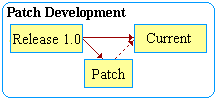
Figure 10. A patch snapshot is created by copying a release snapshot (Release 1.0). You can use a patch snapshot to do bug fixes or add enhancements to your project.
SnapshotCM lets you easily create a patch snapshot from any release snapshot. The patch snapshot is an exact copy of the selected project snapshot, but is ready for modification. Patch snapshots are usually created as successors of existing snapshots (see figure 10).
You can use a patch snapshot when you want to make a change in your project that needs to be completed before the next major release is finished. After you create a patch snapshot and make the desired changes, you can, by creating a relationship from the patch snapshot to the current snapshot, merge the patch changes into the current work. Patch snapshots are useful for:
- bug fixes
- project enhancements
- customizations for particular customers
Parallel Development
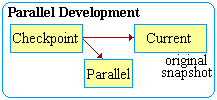
Figure 11. Parallel snapshots involve both a checkpoint snapshot and a patch snapshot. The Current and Parallel snapshots allow divergent development without affecting other snapshots, while Checkpoint preserves the common baseline (or branch point).
You may want to create parallel release snapshots to work on multiple releases of your project simultaneously. By combining checkpoint and patch snapshots, parallel development is established, as well as a common baseline (see figure 11).
The checkpoint snapshot provides a baseline state of the project at the time the parallel development begins. The parallel snapshot provides an additional project snapshot where parallel product development can commence.
Modified Sequential
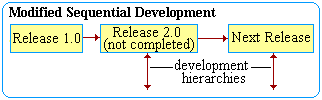
Figure 12. Modified sequential development allows starting the next release before the current (Release 2.0) is completed.
Frequently a team will want to start on the next project release before the current effort is completed. Figure 12 illustrates how snapshots can be used in this situation. Here, Release 2.0 represents the unfinished current work and Next Releasethe next release work. The relationship from Release 2.0 into Next Release allows changes made after the split to be propagated forward into Next Release. SnapshotCM automatically identifies all changes to Release 2.0, making the forward copy generally straightforward.
This model differs from the parallel and patch models in development intent. If you intend to perform divergent development, the parallel model is more appropriate. And the patch model is more clear if one is creating a patch to something that is frozen.
The presented models focus on use of release snapshots. Development snapshots can also be used for most of these purposes. However, since the relationships are much less natural and not graphically depicted, this use is not recommended. Development snapshots are best used for team isolation and coordination.
Summary
SnapshotCM represents a shift away from file revision focused CM tools. SnapshotCM takes care of the details of which revision of which files (and even which files) belong to a release and allows users to focus on releases rather than files. SnapshotCM automates the identification of changes between releases, and makes easy the propagation of changes from patches into on-going development. SnapshotCM provides a development model that fits well into the way development projects typically operate.
In summary, SnapshotCM provides advantages for all types of users:
- For the developer, SnapshotCM's powerful and advanced workspace operations simplify workspace management. The isolation inherent in snapshots allows a developer to both check in and remain isolated from other work until a task is completed. And the attribute versioning means one can rename or delete old files as appropriate for the current work.
- For the development team, the snapshot relationships support flexible coordination of changes.
- For the administrator, the graphical release management makes release preserving and comparing trivial.
- For the code builder, snapshot and workspace operations make getting the right code easier than ever.
- For the code maintainer, the easy and reliable access to old release snapshots allows a focus on the maintenance problem rather than the CM system.
- For management, the improved productivity, reduced risk and complete solution provided by all of these features means that the team is more productive as they are able to focus more on their product and less on CM.
SnapshotCM, in all of these areas, strives to make software development just a bit less complex. And in the middle of a long day, isn't it nice to know that
SnapshotCM handles the details so you don't have to.
